
How to Copy GoPro Files to an External SSD Using Just an iPhone
Table Of Contents
- The Gear I Used
- Connect the Hub to the iPhone's USB-C Port and Open the Files App
- The SSD and microSD Card Show Up in Browse
- Open the DCIM Folder on the GoPro's microSD Card and Choose a Video
- Go to the Folder on the SSD and Paste
- How to Copy Multiple Files at Once
- The Transfer Speed Was About 1GB in 1 Minute
- I Only Got About 1/5 of the iPhone 15's USB Speed Limit
- With a Mac mini, the microSD Card Became the Bottleneck
- Transferring 100GB Takes 1 Hour 40 Minutes, and You Can't Charge During the Transfer
I tried copying GoPro files directly to an external SSD using an iPhone, without a computer, for when the microSD card fills up on a trip. I also measured the transfer speed.
関連動画
Related Video
This is a video where we actually tried out the content from the article! If anything is unclear in the article, please check out the video.
The video provides further explanations and demonstrations, so it should be helpful.
Subscribe to Our Channel
If you found this video helpful, please consider subscribing to our channel or giving it a thumbs up! It really motivates us to create more content.
Questions and Feedback
If you have any questions or feedback regarding this article or the video, feel free to leave them in the comment section of the video. Your input is greatly appreciated and will help us improve our content in the future!


When I use my GoPro a lot on a trip, the microSD card fills up pretty quickly.
I used to bring a laptop and copy the files to an SSD.
Then I realized I could do it with just my iPhone, so I tried it myself.
The Gear I Used
A Type-C hub with multiple USB ports lets you connect several devices to your iPhone at once.

You can buy this hub for around 1000 yen and use it for other things too.
Since USB-C started with the iPhone 15, I'd expect an iPhone 14 or earlier to need a hub with a Lightning connector (I've only tried this with an iPhone 15).
For the SSD and microSD card reader, I just used the ones I normally use.


![SanDisk microSDXC 100MB/s 256GB Ultra サンディスク SDSQUAR-256G-GN6MN 海外パッケージ品 [並行輸入品]](https://m.media-amazon.com/images/I/51gEfy7dCCL._AC_SL1068_.jpg)
Apparently, SSDs formatted for Windows may not work properly, so the advice is to pay attention to the format.
Reference: Buffalo: "Using the Same External Hard Drive with Windows and Mac" (Japanese page) (I haven't tried a Windows format on my own SSD).
Connect the Hub to the iPhone's USB-C Port and Open the Files App
Plug the hub into the iPhone's USB-C port, then connect the SSD and microSD reader.
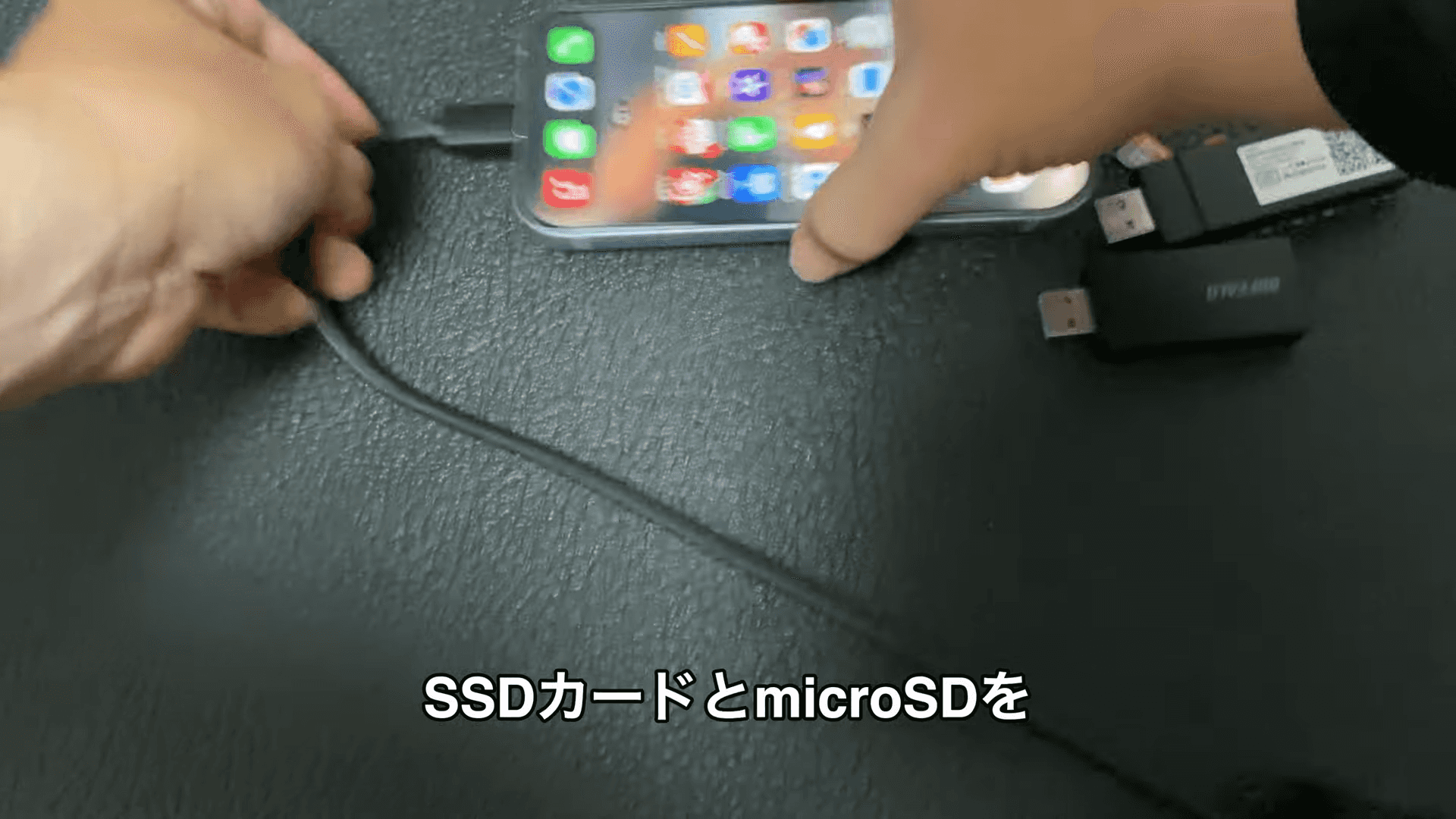
Then open the Files app on your iPhone.
If you can't find it on the Home Screen, slide through the app pages to the rightmost page and search for "Files" using the app search there.
The SSD and microSD Card Show Up in Browse
In the Files app, tap the "Browse" tab at the bottom right.
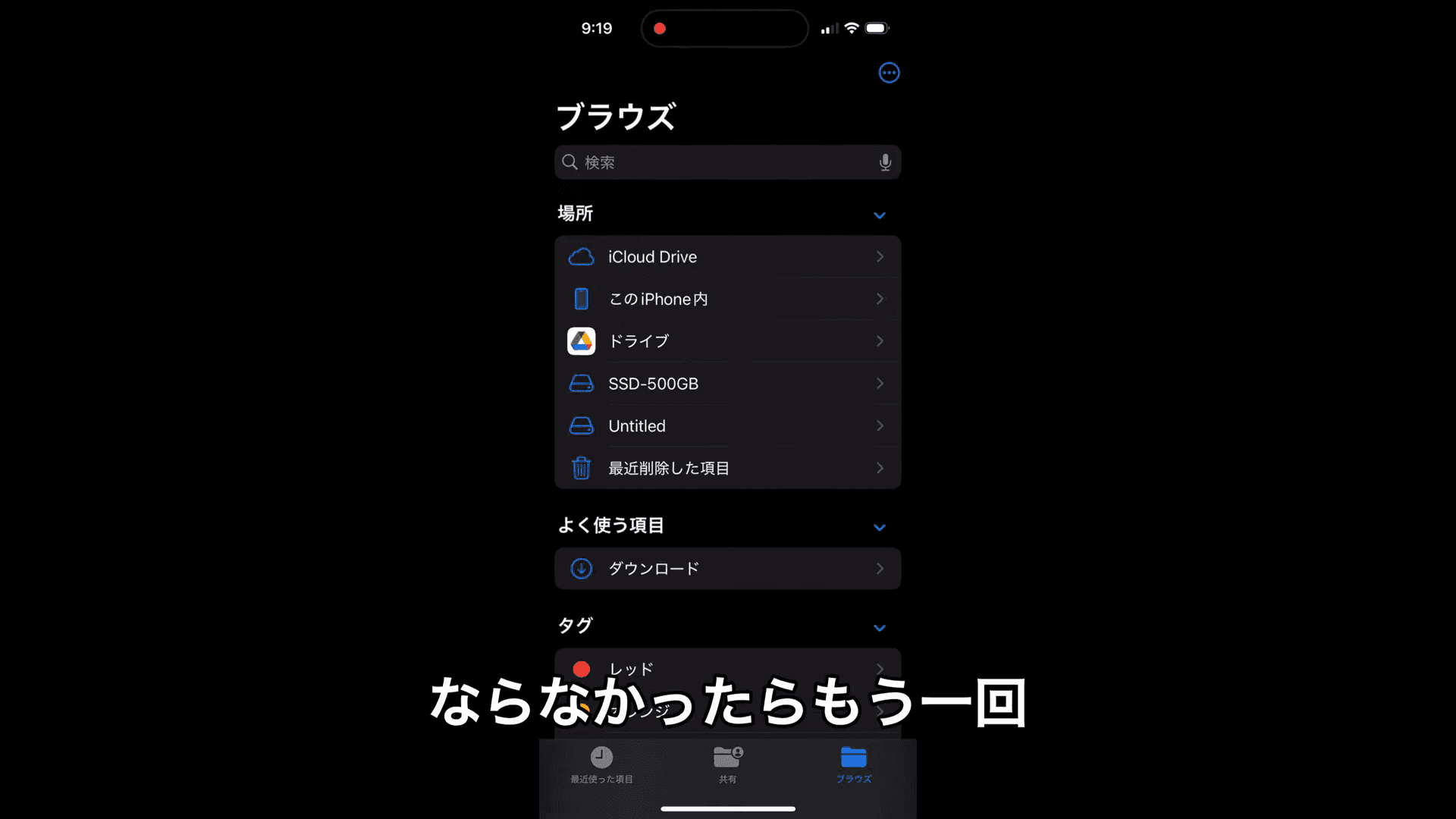
Under "Locations," I could see the connected SSD ("SSD-500GB" in this case) and the microSD card ("Untitled," since I hadn't named it).
If you don't see this screen, tapping "Browse" again may bring it up.
Open the DCIM Folder on the GoPro's microSD Card and Choose a Video
Tap the "Untitled" folder for the microSD card, then go through "DCIM" → "100GOPRO" to see the list of videos.
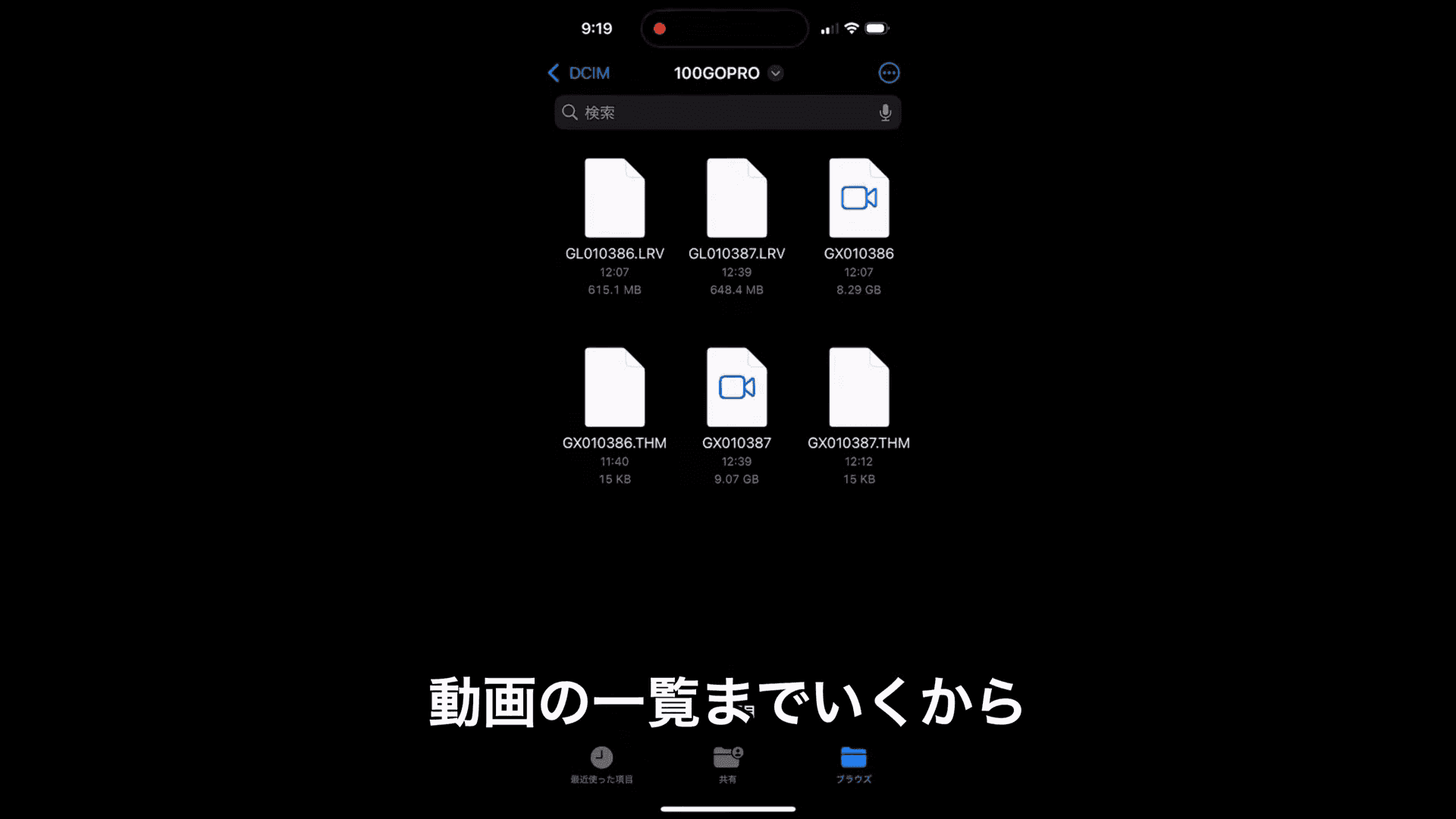
This folder contained the file I wanted to copy, "GX010387" (9.07GB).
Press and hold the file you want to copy to bring up the copy menu.
Go to the Folder on the SSD and Paste
Tap "Browse" or keep tapping the back button to return to the list of drives, then open the destination SSD.
Press and hold on the screen here and select "Paste."
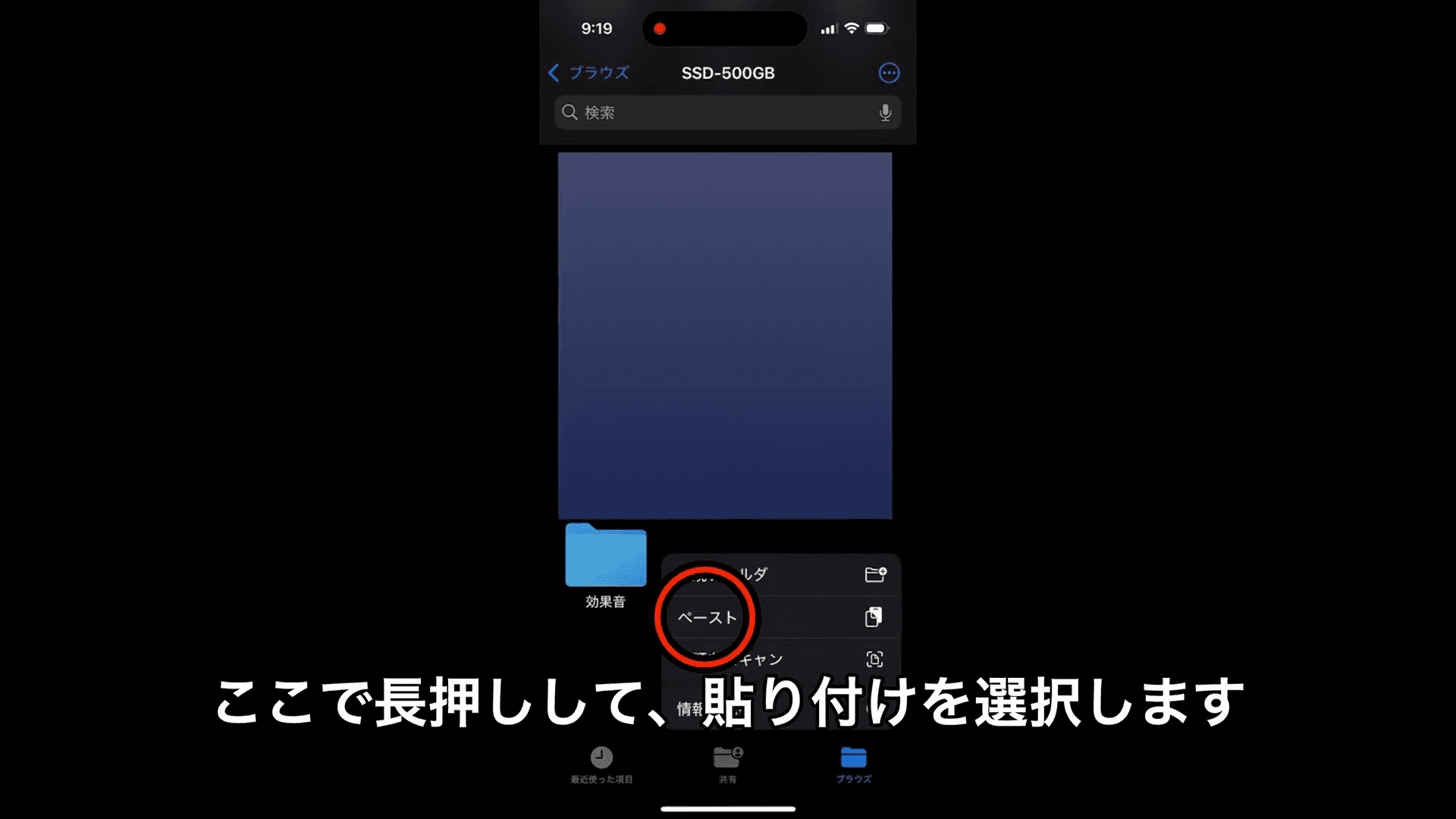
Then just wait for the copy to finish.
How to Copy Multiple Files at Once
To copy multiple files at once, tap "•••" in the top right, then "Select."
Select the videos you want to copy, then press and hold to copy the selected files together.
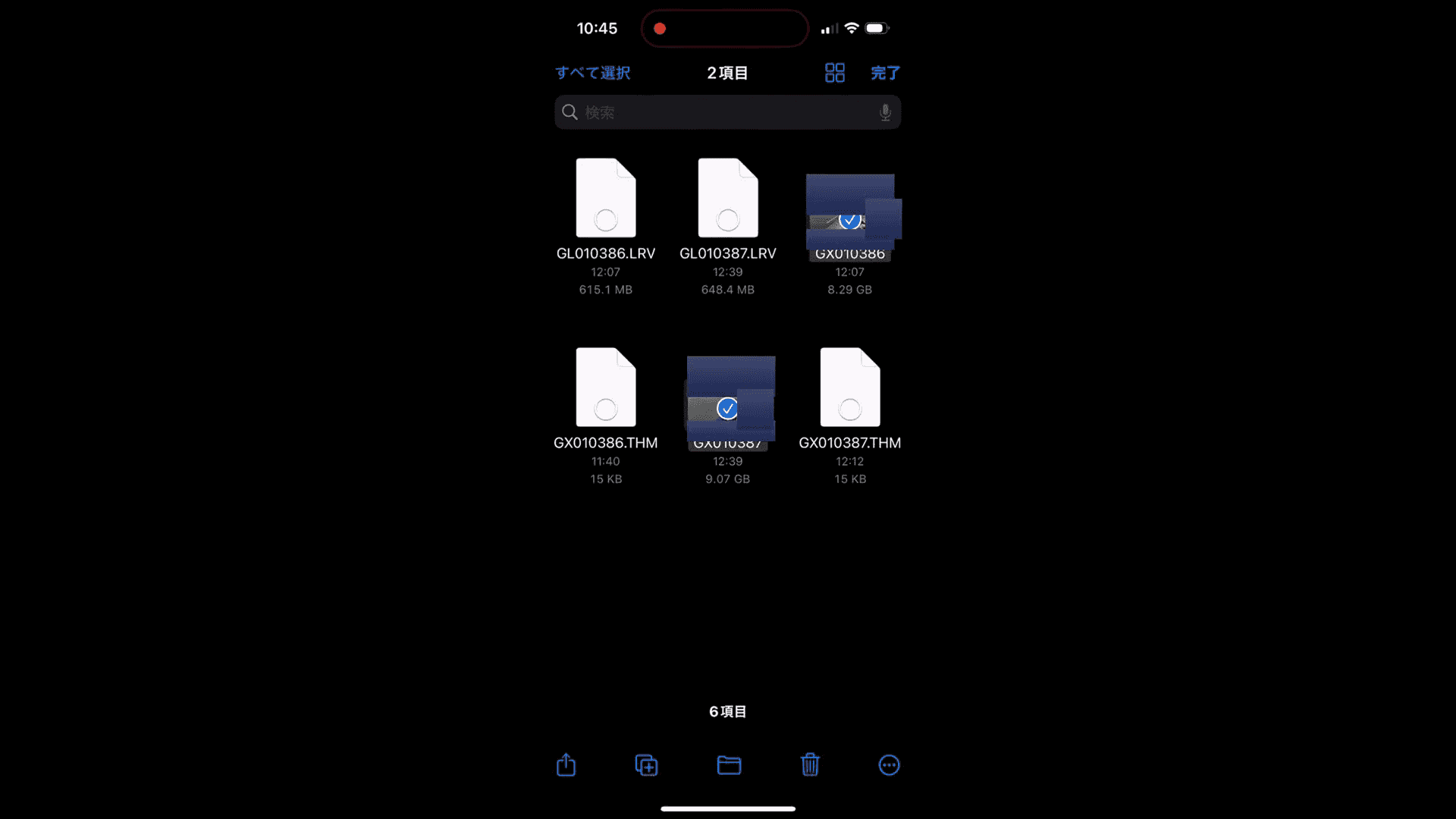
With these steps, copying the files was straightforward.
Next, I measured the copy speed.
The Transfer Speed Was About 1GB in 1 Minute
The file I copied was about 9.07GB.
The copy started at 9:20 and finished at 9:31, taking 11 minutes.
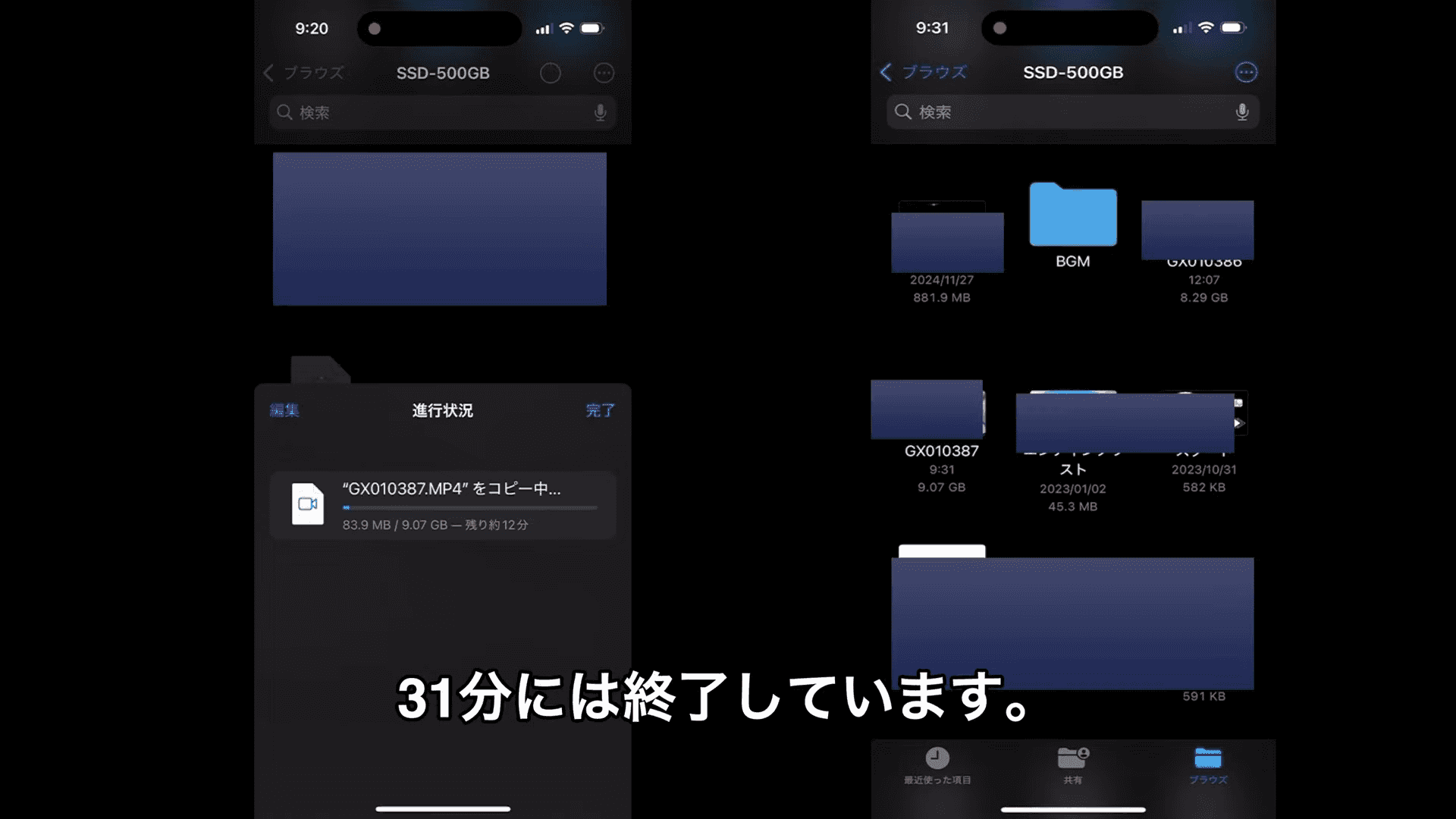
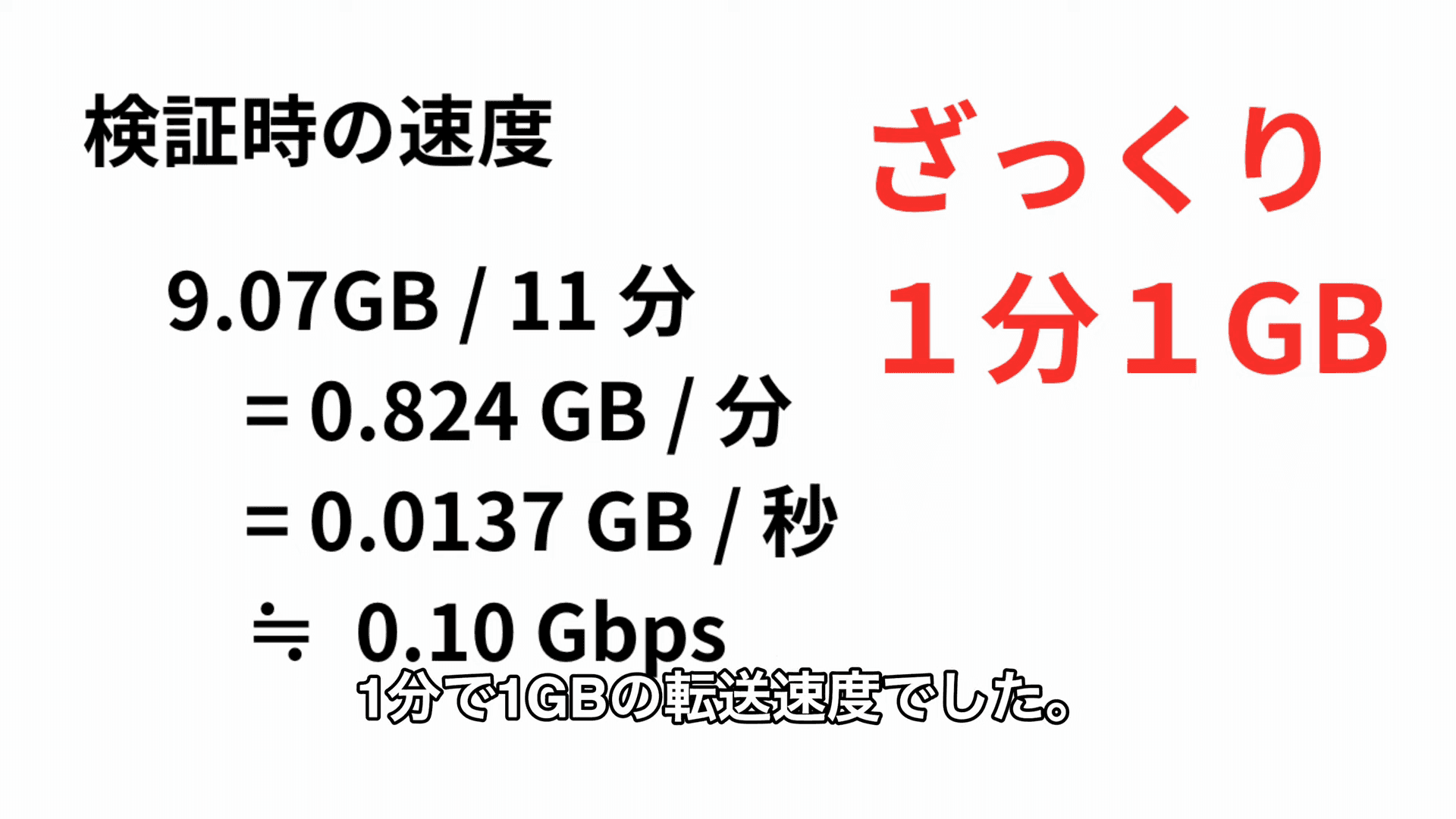
Doing the math gives 9.07GB ÷ 11 minutes = 0.824GB/minute = 0.0137GB/second, or about 0.10Gbps when converted to bits.
The transfer speed worked out to roughly 1GB in 1 minute.
I Only Got About 1/5 of the iPhone 15's USB Speed Limit
When I checked the USB specification on the iPhone 15 page, it was USB 2.0, with a maximum speed of 0.48Gbps (480Mbps).
The measured 0.10Gbps is about 1/5 of that specification's upper limit.
I also checked the speeds of the hub, microSD card, and card reader individually, but the microSD card was rated at up to 100MB/second (about 0.8Gbps) and the card reader had the same speed as the hub, so it didn't seem like the peripherals were the bottleneck.
Considering that the iPhone 15 reads and writes at the same time, a significant slowdown from sharing the bandwidth is an expected result.
The iPhone 16 and iPhone 16e have the same USB specification as the iPhone 15, so I'd expect similar speeds (I haven't tried this on the iPhone 16 series myself).
With a Mac mini, the microSD Card Became the Bottleneck
I was curious, so I transferred the same file using a USB port with 10Gbps bandwidth on my Mac mini.
It took 1 minute 47 seconds, which was much faster than the iPhone.
At this speed, the numbers suggest that the microSD card's maximum speed (about 0.8Gbps) becomes the bottleneck instead.
In other words, the slow transfer through the iPhone seems to come down to the iPhone's own transfer speed, rather than the performance of the peripherals.
Transferring 100GB Takes 1 Hour 40 Minutes, and You Can't Charge During the Transfer
At this speed, transferring 100GB would take about 1 hour 40 minutes.
During that time, the hub occupies the iPhone's USB-C port, so you can't charge it.
If this transfer speed works for you, or if you're like me and want to deal with storage issues while traveling, this setup might be worth considering.
Honestly, after this test, I also thought buying extra microSD cards and bringing them along was a reasonable option.


